Fixed the UAC problems with my "Vista and Office 2007 Preview Handler Pack"

Being a good coder I’ve taken my laptop on holidays with me, and decided that tonight would be a good time to tackle the UAC issue with my Vista preview handlers.

The latest (and UAC friendly) version is here:

http://tatham.oddie.com.au/files/PreviewHandlerPackSetup.msi

Basically, I needed to force an escalation prompt. This task itself is pretty easy and well documented, however VS2005 (which I’m using to make my MSIs) isn’t exactly a full featured installer package – it barely knows how to copy files.

In the end I found a really useful blog post by Aaron Stebner that explains how to do just that. He solves the problem using a post-build script that fixes the MSI generated by VS2005.

Unfortunately Aaron’s solution didn’t work straight out of the box as the MSI path wasn’t being passed to the script at all. After beating my head against the wall and retyping the post-build event several times I found this little gem:

The VS2005 macro name has a typo in it!

Released: Windows and Office Preview Handler Pack

(Note: I completely rewrote this post on 18th March 2010 to bring it all up to date.)

Back with the release of Windows Vista, Microsoft introduced the concept of preview handlers. These let you preview all different file types from within Windows Explorer. Even better, they are both extensible (so you can add more types) and they work in Office too.

To make them more developer friendly, I developed a set of preview handlers for file types commonly used by developers.

Download Now

The pack works with:

  • Windows Vista
  • Windows 7
  • Outlook 2007
  • Outlook 2010

The pack adds support for:

  • ActionScript (.as)
  • ASPX (.aspx)
  • C# (.cs)
  • CSS (.css)
  • Diff (.diff, .patch)
  • DOS (.bat, .cmd)
  • JavaScript (.js)
  • Ruby (.rb, .rhtml, .rjs) thanks to Ivan Porto Carrero
  • SQL (.sql)
  • VB (.vb)

The project is basically just a stitched together set of other people’s work – there wasn’t much left for me to do considering:

If you’re interested in contributing your own ideas or adding more file types, just over to the source repository on CodePlex.

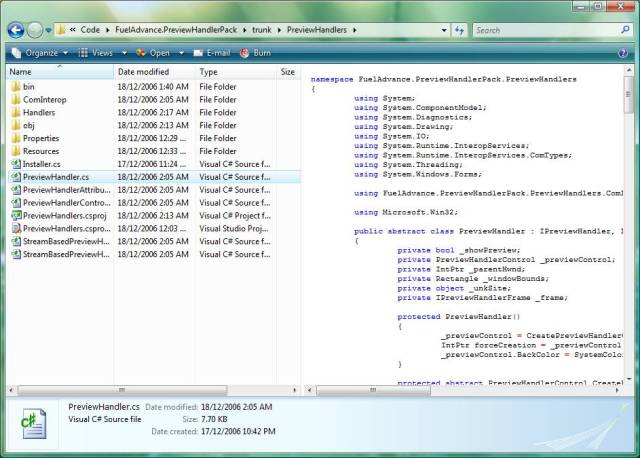
Previewing a C# (.cs) file in Vista

Previewing as ASP.NET (.aspx) file in Vista

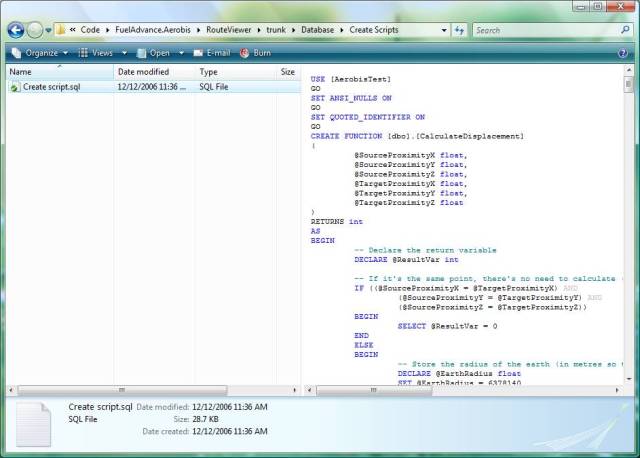
Previewing a TSQL (.sql) file in Vista

Getting VS.NET to use tabs for some projects and spaces for others

I ran into an issue today where Neil needs to use spaces for most of his coding (apparently print designers still haven’t caught on to what exactly a tab is) but for consistency he needs to use tabs on a shared project. Reconfiguring your VS every time you want to do some coding kinda sucks, so Paul and I went in search of a better solution.

Paul’s first suggestion was that we create another user account, and then have two different VS shortcuts. Shortcut A launches VS.NET under user account A using profile A. Shortcut B launches VS.NET under user account B using profile B. We pretty quickly got scared of this option for a number of reasons:

  • Under Vista you need to run VS.NET with privelige escalation, and if you wanted two VS.NET instances running sdie-by-side under two different escalations jsut sounds scary. It means you’d have total of 4 tokens in play for those two processes alone.
  • Knowing .NET debugging and other assorted “platform sugar” would quite likely curl up and die. Most third party addins just curl up and die in this case as well.
  • If you wanted to reconfigure your IDE you’d have to do every change twice.

My next though was to see if we could specify it as a command switch at all. We couldn’t – but we could reset the IDE settings with the /ResetSettings switch. Better yet, we could supply a .vssettings file to the switch and the IDE would load it up. Our shotcuts now look like this:

devenv.exe /ResetSettings UseRealTabsLikeRealMen.vssettings

devenv.exe /ResetSettings UseCrappyFakeTabsLikeALittleGirl.vssettings

(Note: The names of the settings files are crucial to this solution working.)

The really really cool thing is that .vssettings files don’t need to define every setting – just the ones you actual want to load. By selectively exporting some settings then massaging the XML by hand I created settings files that just defines the tab settings.

Simple!

Everything except your tab settings are shared across the profile like normal. Addins work like normal. No crazy user accounts. If you’re working with a number of different projects and teams this is a nice way of customizing your IDE per project.

Download: http://tatham.oddie.com.au/files/VsTabConfigurationShortcuts.zip

Life in the fast lane

In the last 24 hours we have seen the release of:

It’s almost impossible to keep up with Microsoft at the moment – exactly how it should be.

Live Local finally getting some air time

It seems that Microsoft has started evangelising local.live.com towards end users (albeit indirectly). Watching the TV in Sydney tonight I noticed that local.live.com is displayed on screen during an Optus Broadband commercial. Based on the number of other MSN services being displayed, I’m guessing this is purposeful product placement on behalf of Microsoft.

What’s the difference between Virtual Earth and MapPoint Web Service?

From http://www.microsoft.com/virtualearth/faq.mspx:

Q. What happened to the MapPoint Web Service? What is the difference between the Virtual Earth platform and MapPoint Web Service?

A. The Virtual Earth platform encompasses the next evolution of the MapPoint Web Service offering with innovative new capabilities. The Virtual Earth platform is not only a new brand name; it represents a richer, more powerful offering from Microsoft to companies of all industries. Developers have the flexibility of tapping into one of the two Virtual Earth application programming interfaces (API): MapPoint Web Service API using SOAP XML to communicate with customer applications and Virtual Earth Map Control that lets users make request via JavaScript to an AJAX map object.

Here are some quick comparisons:


Virtual Earth

MapPoint Web Service

Map Styles

Road, Aerial, Birds eye

Over 30 different styles (optimised schemes for night viewing, etc) however no aerial imagery

Integration style

JS control (best for embedding in web pages)

SOAP web service (usable anywhere)

Interface style

Drag and drop positioning, scroll wheel support, interactive pushpins, AJAX based.

Roll your own (it returns an image and you have to work out what to do with it).

Pushpin support

You create them all yourself on the fly using API calls – any clustering / filtering optimizations have to be done manually.

Can upload pushpin sets to their databases and they will handle plotting / clustering and filtering.

Routes

Specify a start point and an end point and they’ll give you a route in text. End of story.

Specify the waypoints, preferred road styles (back roads, highways, toll roads, non-toll roads) and it will return a machine readable result set.

Cost

Free (commercial use has some minor restrictions)

Per transaction

SDK documentation and support

Basic MSDN docs, active community (www.viavirtualearth.com)

Plenty of MSDN docs and articles, including VS.NET integrated help and plenty of websites (www.mp2kmag.com)

Scrybe

I just had this link IMed to me by Tim Kremer. It will be interesting to see a release and start culling the hype from the features, but their short intro video so far is pretty amazing:

http://iscrybe.com/

Based on the video, I’d put my money on it being an AJAX based solution using Flash for client side storage (most likely a proprietary version of something like AMASS).

Custom VS.NET2005 color schemes – they’re all the rage

It seems like everyone’s doing it, so I thought I’d spend some time focussing on getting my own VS.NET color scheme polished off.

While developing the scheme I’ve focused on a number of concepts that I believe in (whether they are right or wrong – I believe in them):

  • Reading light text on a dark background is much easier than doing it the other way around. Don’t believe me? Take a photo of the text written on the base of a light globe while it’s turned on, then try and read the text – it’s almost impossible. Now, invert the colors and try again – easy!
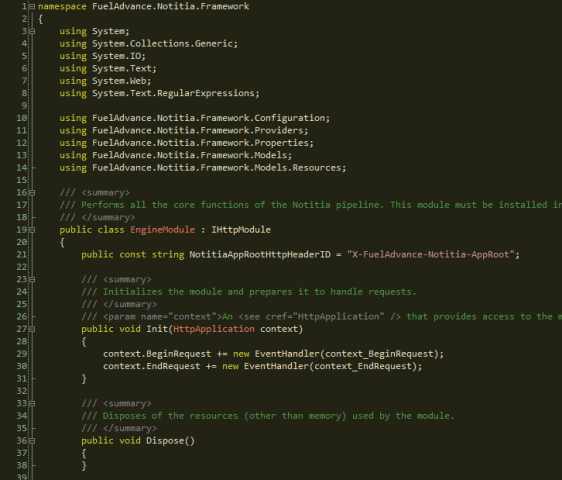
  • High contrast makes reading harder too – pure white on pure black will strain your eyes a lot faster than an off white on a dark grey background. Most people can’t even tell that the background color in the screenshot below is a dark brown rather than a pure black – but it is, and it makes a difference.

If you want to give it a whirl, download the Consolas font then download the .vssettings file. Keep in mind that this is only a v1 – the C# looks awesome, but I’ve yet to format the XML and HTML. Of course, I haven’t even tested VB.NET as I don’t even have it installed! I’ll post a v2 with colors for everything as soon as I get sick of looking at ugly XML/HTML.

So, without further ado, here’s what I’ve come up with so far:

The psychology behind your "Send/Receive" button addiction

Ever wondered why it feels so satisfying to keep clicking the Send/Receive button in Outlook, even if you just clicked it, or if you know you don’t have an internet connection?

This excellent blog post explains the psychology behind all this:

http://www.mindhacks.com/blog/2006/09/why_email_is_addicti.html

(via http://blog.clearcontext.com/2006/09/pavlovs_email.html)

TechEd Presentation: How to build an Atlas mashup – using some Aussie content

Paul Glavich and I will be delivering our talk later this after noon … just pushing up the resources now.

Blogs

The web service we used

Community Site

I’m going to try and deploy a live copy of the demo to http://usergroups.it/ later today, and will also post a set of the code resources at the same time.

Update: The application is now live and useable on http://usergroups.it/

Update: The code resources are now available at http://tatham.oddie.com.au/explicate/Resources/Tec…