I’ve being playing around with an XHTML WYSIWYG editor called XStandard lately. Their actual product is awesome, but before I jumped in and used their supplied ASP.NET wrapper I thought I’d just take a quick look at it in Reflector. Unfortunately, like many redistributed controls, there were some issues that jumped out at me. (This post isn’t a dig at them – they just kicked off the writing idea in my head, although I’d love it if they implemented the relevant changes.)
This post is designed as a quick guide around some of these issues, and represents the generally accepted best practice approach for control development. These were just the first issues that came to mind – in another post I’ll cover rendering best practices, as well as incorporate any suggestions by you.
Survive the postback – use ViewState
After a page has finished rendering, it is mostly destroyed in memory. When a postback occurs, the ASP.NET runtime has to rebuild all of the objects in memory. If we use fields as the backing stores for our properties, these values won’t survive the postback and thus your control will be re-rendered differently.
A traditional .NET property might look like this:
private string _spellCheckerURL;
public string SpellCheckerURL
{
get { return _spellCheckerURL; }
set { _spellCheckerURL = value; }
}
But in ASP.NET server controls, we need to write them like this:
public string SpellCheckerUrl
{
get { return (string)ViewState[“SpellCheckerUrl”] ?? string.Empty; }
set { ViewState[“SpellCheckerUrl”] = value; }
}
You might notice my use of the C# coalesce operator (??). Until we store anything in the property, requesting it from view state is going to return null. Using the coalesce operator allows us to specify a default value for our property, which we might normally have specified on the field like so:
private string _spellCheckerURL = string.Empty;
Respect the ViewState (and thus the user)
The rule above (store everything in the ViewState) is nice and reliable, but it can also be a bit nasty to the end user – the person who has to suck down your behemoth chunk of encoded ViewState.
For some properties, you can safely lose them then just work them out again. Our rich text editor control gives a perfect example – we don’t need to store the text content in the ViewState because it’s going to be written into our markup and passed back on the post-back. We can (and should) be storing this data in a backing field for the first render, then obtaining it from the request for postbacks.
Build your control as the abstraction layer that it’s meant to be
ASP.NET server controls exist to provide a level of abstraction between the developer, and the actually workings of a control (the markup generated, the postback process, etc). Build your control with that in mind.
The XStandard control is a perfect example of a server control being implemented as more of a thin wrapper than an actual abstraction layer – you need to understand the underlying API to be able to use the control.
Their Mode property looks like this:
public string Mode
{
get { return this.mode; }
set { this.mode = value; }
}
For me as a developer, if the property accepted an enumeration I wouldn’t need to find out the possible values – I could just choose from one of the values shown in the designer or suggested by IntelliSense.
public enum EditorMode
{
Wysiwyg,
SourceView,
Preview,
ScreenReaderPreview
}
public EditorMode Mode
{
get { return (EditorMode)(ViewState[“Mode”] ?? EditorMode.Wysiwyg); }
set { ViewState[“Mode”] = value; }
}
This adds some complexity to our control’s rendering – the names of the enumeration items don’t match what we need to render to the page (eg. EditorMode.ScreenReaderPreview needs to be rendered as screen-reader). This is easily rectified by decorating the enumeration, as per my previous post on that topic.
You might also have noticed that the casing of SpellCheckerUrl is different between my two examples above. The .NET naming guidelines indicate that the name should be SpellCheckerUrl, however the XStandard control names the property SpellCheckerURL because that’s what the rendered property needs to be called. The control’s API surface (the properties) should be driven by .NET guidelines, not by rendered output. This comes back to the idea of the control being an abstraction layer – it should be responsible for the “translation”, not the developer using the control.
Support app-relative URLs
App-relative URLs in ASP.NET (eg. ~/Services/SpellChecker.asmx) really do make things easy. Particularly working with combinations of master pages and user controls, the relative URLs (eg. ../../Services/SpellChecker.asmx) can be very different throughout your site and absolute URLs (http://mysite.com/Services/SpellChecker.asmx) are never a good idea.
The XStandard control uses a number of web services and other resources that it needs to know the URLs for. Their properties look like this:
[Description(“Absolute URL to a Spell Checker Web Service.”)]
public string SpellCheckerURL
{
get { return this.spellCheckerURL; }
set { this.spellCheckerURL = value; }
}
This made their life as developers easy, but to populate the property I need to write code in my page’s code-behind like this:
editor.SpellCheckerURL = new Uri(Page.Request.Url, Page.ResolveUrl(“~/Services/SpellChecker.asmx”)).AbsoluteUri;
This renders my design-time experience useless, and splits my configuration between the .aspx file and the .aspx.cs file.
All properties that accept URLs should support app-relative URLs. It is the controls responsibility to resolve these during the render process.
Generally, the resolution would be as simple as:
Page.ResolveUrl(SpellCheckerUrl) (returns a relative URL usable from the client page)
however if your client-side code really does needs the absolute URL, you can resolve it like this:
new Uri(Page.Request.Url, Page.ResolveUrl(SpellCheckerUrl)).AbsoluteUri
Because we’re using the powerful URI support built in to .NET, we don’t even need to worry about whether we were supplied an absolute URL, relative URL or file path … the framework just works it out for us.
Either way, it’s your responsibility as the control developer to handle the resolution.
Use the URL editor
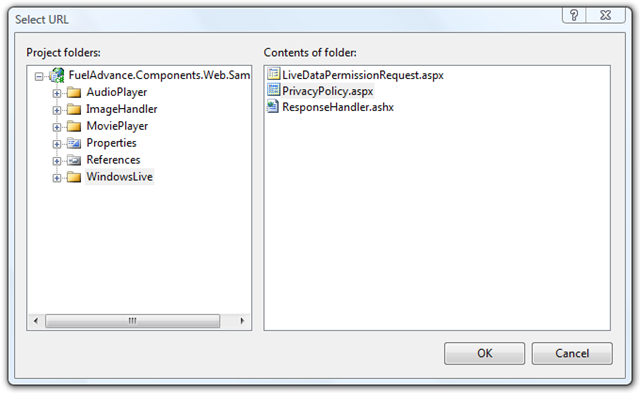
Now that we’ve made it really easy for developers to specify URLs as page-relative, app-relative or absolute, let’s make the designer experience really sweet with this editor (notice the […] button on our property):
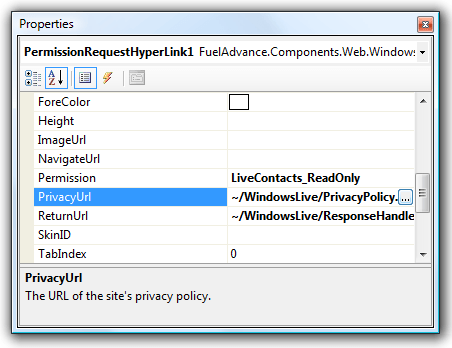

That’s as simple as adding two attributes to the property:
[Editor(“System.Web.UI.Design.UrlEditor, System.Design, Version=2.0.0.0, Culture=neutral, PublicKeyToken=b03f5f7f11d50a3a”, typeof(UITypeEditor))]
[UrlProperty]
public string SpellCheckerUrl
{
get { return ViewState[“SpellCheckerUrl”] as string ?? string.Empty; }
set { ViewState[“SpellCheckerUrl”] = value; }
}
Document with XML and attributes
IntelliSense reads the XML comments, but the designer reads attributes. Document your control’s API surface using both of them.This is a bit annoying, but really not that hard and well worth it. Make sure to specify the summary in XML, as well as the Category and Description attributes.
Our typical property now looks something like this:
/// <summary>
/// Gets or sets the URL of the return handler (a handler inheriting from <see cref=”PermissionResponseHandler”/>).
/// This should be a URL to a HTTPS resource to avoid a scary warning being shown to the end user.
/// </summary>
[Category(“Behavior”)]
[Description(“The URL of the return handler (a handler inheriting from PermissionRequestReturnHandler).”)]
public string ReturnUrl
{
get { return ViewState[“ReturnUrl”] as string ?? string.Empty; }
set { ViewState[“ReturnUrl”] = value; }
}
If you look closely, you’ll notice the documentation isn’t actually duplicated anyway … the messaging is slightly different between the XML comment and the attribute as they are used in different contexts.
Provide lots of designer hints
In the spirit of attributes, let’s add some more to really help the designer do what we want.
For properties that aren’t affected by localization, mark them as such to reduce the clutter in resource files:
[Localizable(false)]
Define the best way to serialize the data in the markup. This ensures a nice experience for developers who do most of their setup in the design, but then want to tweak things in the markup directly.
[PersistenceMode(PersistenceMode.Attribute)]
Declare your two-way binding support. If you mark a property as being bindable (which you should) then you also need to implement INotifyPropertyChanged (which you should):
[Bindable(true)]
Declare default values. Doing so means that only properties that are explicitly different will be serialized into the markup, keeping your markup clean.
[DefaultValue(“”)]
Clearly indicate properties that are read-only. Doing so will make the read-only in the designer, rather than throwing an error when the user tries to set them:
[ReadOnly(true)]
If a property isn’t relevant to the design-time experience, hide it.
[Browsable(false)]
[DesignerSerializationVisibility(DesignerSerializationVisibility.Hidden)]
At the class level, it’s also good to define your default property so that it can be auto-selected first in the property grid.
[DefaultProperty(“Text”)]
Don’t get creative with IDs
ASP.NET has a great system for managing client side IDs and avoiding any conflicts – use it.
Use the ClientID property, and where needed, the INamingContainer interface. Don’t create IDs yourself.
Define your tag template
Add a ToolboxData attribute to your control class so that users get valid code when they drag it on from the toolbox:
[ToolboxData(“<{0}:XhtmlEditor runat=\”server\”></{0}:XhtmlEditor>”)]
Define your tag prefix
Define a tag prefix so that your controls have a consistent appearance in markup between projects.
[assembly: TagPrefix(“FuelAdvance.Components.Web”, “fa”)]
You only need to do this once per assembly, per namespace. Your AsssemblyInfo.cs file is generally a good place to put it.
Update 6-Nov-07: Clarified some of the writing. Added another screenshot.

 Tatham Oddie