
Back in 2002 Microsoft released FxCop, a static code analysis tool. At the time it was shipped as a separate product and received a bit of buzz. It used .NET reflection and a series of pre-defined rules to detect and report coding issues that wouldn’t normally be picked up by the compiler. Since this initial release, FxCop has undergone an amazing amount of work and become more mainstream with its integration into Visual Studio under the title of ‘Code Analysis’.
Recently I’ve been developing some custom extensions to FxCop – my own code analysis rules. While extremely powerful, this isn’t yet a fully documented or supported scenario. Until it is, this post shows you how to do it all.
Why should we care?
Lately I’ve been working on the ASP.NET Web Forms Model-View-Presenter framework. It’s not quite ready for launch yet, which is why I haven’t been blogging about it, but it is already in use by a number of high traffic websites. As more and more people have started to adopt the project in its relative infancy, documentation hasn’t been up to standard. To try and keep everybody in line I contemplated writing up some ‘best practices’ documentation but then figured that this probably wouldn’t get as much attention as it should and had a high chance of rapidly becoming stale.
Code analysis rules were the perfect solution. They would allow me to define a series of best practices for use of the library in a way that could be applied across multiple projects by the developers themselves. Code analysis rules are also great because they produce a simple task list of things to fix – something that appeals to developers and managers alike.
Over the course of developing these rules I’ve increasingly come to realise that custom rules are something that should be considered in any major project – even if it’s not a framework that will be redistributed. All projects (should) have some level of consistency in their architecture. The details of this are often enforced through good practice and code reviews, but from time to time things slip through. In the same way that we write unit tests to validate our work, I think we should be writing code analysis rules. Think of them like an “architectural validity test” or something.
The Basics
A quick note about versioning: First we’ll create some rules in VS2010, to be executed in VS2010. Later in the post we’ll look at how to compile these same rules in a way that makes them compatible with FxCop 1.36 (and thus VS2008). If you’re only targeting VS2008 then all the same concepts will apply but you’ll be able to skip a few steps.
-
Start with a new class library project. Make sure you choose to target “.NET Framework 4”, even if the rest of your solution is targeting an earlier framework. Because we’re going to be loading these rules inside VS2010, and it uses .NET 4.0, we need to use it too.

- Add references to FxCopSdk.dll, Microsoft.Cci.dll and Microsoft.VisualStudio.CodeAnalysis.dll. You’ll usually find these in C:\Program Files (x86)\Microsoft Visual Studio 10.0\Team Tools\Static Analysis Tools\FxCop, or an equivalent location. Don’t worry about copying these libraries to a better location or anything – we’ll look at a smarter way of referencing them shortly. (If you’re doing this in VS2008, you’ll need to download and install FxCop 1.36 first and then find these references in that folder. Also, you’ll only need the first two.)
-
Add a new XML file to your project called Rules.xml. This will be a manifest file that describes each of our individual rules. To get us started, paste in the following content:
<?xml version="1.0" encoding="utf-8" ?>
<Rules FriendlyName="My Custom Rules">
  <Rule TypeName="AllTypeNamesShouldEndInFoo" Category="CustomRules.Naming" CheckId="CR1000">
    <Name>All type names should end in 'Foo'</Name>
    <Description>I like all of my types to end in 'Foo' so that I know they're a type.</Description>
    <Url>http://foobar.com</Url>
    <Resolution>The name of type {0} does not end with the suffix 'Foo'. Add the suffix to the type name.</Resolution>
    <MessageLevel Certainty="95">Warning</MessageLevel>
    <FixCategories>Breaking</FixCategories>
    <Email />
    <Owner />
  </Rule>
</Rules>
This XML file is pretty self-explanatory, but there are a few things I should point out:
The type name needs to match the name of the class that we define the actual rule in, so make it appropriate (don’t use special characters, use Pascal casing, etc).
The check id must be unique within the namespace of your rules, but really should be unique across the board. Microsoft uses the letters “CA” followed by a four digit number, and we use a similar scheme for Web Forms MVP.
The resolution message is stored in the XML here, and not in your own code, but you want it to be as specific as possible so that the developer on the receiving end of it knows exactly what they need to do. Use it like a formatting string – you’ll soon see that it works really nicely.
-
Go to the properties for the XML file and change the Build Action to EmbeddedResource so that it gets compiled into our DLL.

-
Create a class called BaseRule and paste in the following code:
using Microsoft.FxCop.Sdk;

public abstract class BaseRule : BaseIntrospectionRule
{
    protected BaseRule(string name)
        : base(

            // The name of the rule (must match exactly to an entry
            // in the manifest XML)
            name,

            // The name of the manifest XML file, qualified with the
            // namespace and missing the extension
            typeof(BaseRule).Assembly.GetName().Name + ".Rules",

            // The assembly to find the manifest XML in
            typeof(BaseRule).Assembly)
    {
    }
}
There are three pieces of information we’re passing into the base constructor here. The first is the type name of the rule which the framework will use to find the corresponding entry in the manifest, the second is the namespace qualified resource name of the manifest file itself and the last is the assembly that the manifest is stored in. I like to create this base class because the last two arguments will be the same for all of your rules and it gets ugly repeating them at the top of each rule.
-
Create a class called AllTypeNamesShouldEndInFoo and paste in the following stub code:
using Microsoft.FxCop.Sdk;
using Microsoft.VisualStudio.CodeAnalysis.Extensibility;

public class AllTypeNamesShouldEndInFoo : BaseRule
{
    public AllTypeNamesShouldEndInFoo()
        : base("AllTypeNamesShouldEndInFoo")
    {
    }
}
That’s all of the boilerplate code in place. Before we start writing the actual rule, let’s take a brief detour to the world of introspection.
Um … ‘introspection’?
The first version of FxCop used basic .NET reflection to weave its magic. This approach is relatively simple, familiar to most developers and was a quick-to-market solution for them. As FxCop grew, this approach couldn’t scale though. Reflection has two main problems: First and foremost, it only lets you inspect the signatures of types and members – there’s no way to look inside a method and see what other methods it’s calling or to identify bad control flows. Reflection also inherits a major restriction from the underlying framework – once loaded into an app domain, and assembly can’t be unloaded. This restriction wreaks havoc in scenarios where developers want to be able to rapidly rerun the tests; having to restart FxCop every time isn’t the most glamorous of development experiences.
At this point we could fall back to inspecting the original source code, but that comes with a whole bunch of parsing nightmares and ultimately ties us back to a particular language. CIL is where we want to be.
Later versions of FxCop started using an introspection engine. This provided a fundamentally different experience, light-years ahead of what reflection could provide. The introspection engine performs all of its own CIL parsing which means that it can be pointed at any .NET assembly without having to load that assembly into the runtime. Code can be inspected without ever having the chance of being executed. The same assembly can be reloaded as many times as we want. Better yet, we can explore from the assembly level right down to individual opcodes and control structures through a unified API.
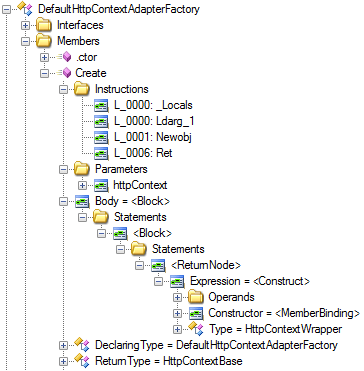
Jason Kresowaty has published a nice write up of the introspection engine. Even cooler yet, he has released a tool called Introspector which allows us to visualise the object graph that the introspection engine gives us. I highly recommend that you download it before you get into any serious rules development.
Back to our rule…
Now that we know some of the basics of introspection, we’re ready to start coding our own rule. As a reminder, this is what we have so far:
using Microsoft.FxCop.Sdk;
using Microsoft.VisualStudio.CodeAnalysis.Extensibility;

public class AllTypeNamesShouldEndInFoo : BaseRule
{
    public AllTypeNamesShouldEndInFoo()
        : base("AllTypeNamesShouldEndInFoo")
    {
    }
}
The FxCop runtime manages the process of ‘walking’ the assembly for us. It will visit every node that it needs to, but no more, and it’ll do it across multiple threads. All we need to do is tell the runtime which nodes we’re interested in. To do this, we override one of the many Check methods.
As much as possible, use the most specific override that you can as this will give FxCop a better idea of what you’re actually looking at and thus provide better feedback to the end user. For example, if you want to look at method names don’t override Check(TypeNode) and enumerate the methods yourself because any violations you raise will be raised against the overall type. Instead, override Check(Member member).
In our scenario, because we want to check type names, we’ll override Check(TypeNode type).
The actual code for this rule is quite simple:
public override ProblemCollection Check(TypeNode type)
{
    if (!type.Name.Name.EndsWith("Foo", StringComparison.Ordinal))
    {
        var resolution = GetResolution(type.Name.Name);
        var problem = new Problem(resolution, type)
                          {
                              Certainty = 100,
                              FixCategory = FixCategories.Breaking,
                              MessageLevel = MessageLevel.Warning
                          };
        Problems.Add(problem);
    }

    return Problems;
}
All we’re doing here is checking the name of the type, and then adding a problem to a collection on the base type. The GetResolution method acts like string.Format and takes an array of parameters then formats them into the resolution text we defined in the XML file.
The second argument that we pass to the Problem constructor is the introspection node that the problem relates to. In this case it’s just the type itself, but if we were doing our own enumeration then we would pass the most specific node possible here so that FxCop could return the most accurate source reference possible to the end user.
Let’s start ‘er up.
At the time of writing, the latest standalone version of FxCop is 1.36 which still targets .NET 2.0 – 3.5. Because we’ve written our rule in .NET 4.0, our only option is to test it within Visual Studio. Luckily, that’s not as hard as it sounds. (If you’re writing your rules in VS2008, jump over this section.)
- Create another class library in your solution called TestLibrary. We won’t put any real code in here – we’re just going to use it as the library to execute our rules against.
-
Add a new Code Analysis Rule Set file to the project:

-
When the file opens in the designer you’ll see a list of all the built-in rules. Because custom rules aren’t really supported yet, there’s no nice way of adding our own rules into this list.

-
In Solution Explorer, right click on the .ruleset file, choose Open With and select XML Editor from the options. This will show you the raw contents of the file, which is currently pretty boring. To point Visual Studio in the direction of your custom rules, you then add a series of hint paths.
This is what my rule set XML looks like:
<?xml version="1.0" encoding="utf-8"?>
<RuleSet Name="New Rule Set" Description="" ToolsVersion="10.0">
  <RuleHintPaths>
    <Path>C:\Temp\CARules\BlogDemo\BlogDemo.CodeAnalysisRules\bin\Debug</Path>
  </RuleHintPaths>
</RuleSet>
Hint paths can be absolute, or relative to the location of the rule set file. They should point at the exact folder that your compiled rules sit in. Because Visual Studio fails silently if it can’t load a rule, I prefer to start with an absolute folder path first, then change it to a relative path once everything is working.
-
Make sure you have compiled your rules project, then go back to Solution Explorer, right click on the .ruleset file, choose Open With and select Code Analysis Rule Set Editor.
(If you have file locking issues, close Visual Studio, delete all of your bin folders, reopen the solution, build the rules project, then attempt to open the Code Analysis Rule Set Editor again.)
Now, you should see your custom rule loaded into the list:

Running the rule is now easy. Open the project properties for your test library project, go to the Code Analysis tab, enable Code Analysis and select our new rule set:

Now when we build the project, the output from our new rule will appear in the Errors List just like any of the default rules:

A Bit of Clean-up
Back when we first created the project file for our rules we referenced a couple of DLLs from a system location. This isn’t very maintainable, particularly in a team environment, so let’s clean that up quickly.
- Right click on the rules project and select “Unload Project”
- Right click on the rules project again and select “Edit .csproj” – this will show you the raw XML definition for the project
-
Find these three references:
<Reference Include="FxCopSdk">
  <HintPath>..\..\..\Program Files (x86)\Microsoft Visual Studio 10.0\Team Tools\Static Analysis Tools\FxCop\FxCopSdk.dll</HintPath>
  <Private>False</Private>
</Reference>
<Reference Include="Microsoft.Cci">
  <HintPath>..\..\..\Program Files (x86)\Microsoft Visual Studio 10.0\Team Tools\Static Analysis Tools\FxCop\Microsoft.Cci.dll</HintPath>
  <Private>False</Private>
</Reference>
<Reference Include="Microsoft.VisualStudio.CodeAnalysis, Version=10.0.0.0, Culture=neutral, PublicKeyToken=b03f5f7f11d50a3a, processorArchitecture=MSIL">
  <SpecificVersion>False</SpecificVersion>
  <HintPath>..\..\Program Files (x86)\Microsoft Visual Studio 10.0\Team Tools\Static Analysis Tools\FxCop\Microsoft.VisualStudio.CodeAnalysis.dll</HintPath>
  <Private>True</Private>
</Reference>
And replace them with this:
<Reference Include="FxCopSdk">
  <HintPath>$(CodeAnalysisPath)\FxCopSdk.dll</HintPath>
  <Private>False</Private>
</Reference>
<Reference Include="Microsoft.Cci">
  <HintPath>$(CodeAnalysisPath)\Microsoft.Cci.dll</HintPath>
  <Private>False</Private>
</Reference>
<Reference Include="Microsoft.VisualStudio.CodeAnalysis">
  <HintPath>$(CodeAnalysisPath)\Microsoft.VisualStudio.CodeAnalysis.dll</HintPath>
  <Private>False</Private>
</Reference>
The build system populates the $(CodeAnalysisPath) variable for us automatically. This way, our references will be valid on every developer’s machine.
- Save and close the file, then right click the project and select “Reload Project”
Do the shuffle. The two-step, multi-framework shuffle…
For Web Forms MVP we want to support users on both VS2008 and VS2010. The work we’ve done so far in this post is all exclusively targeted towards VS2010 and not compatible with VS2008 or FxCop 1.36.
To make the compiled rules compatible with both IDEs we’ll need to compile two different versions of it. The VS2008 version will use .NET 3.5 and only two references while the VS2010 version will use .NET 4 and a third reference, Microsoft.VisualStudio.CodeAnalysis.
- Right click on the rules project and select “Unload Project”
- Right click on the rules project again and select “Edit .csproj” – this will show you the raw XML definition for the project
-
Find both your Debug and Release property groups and add a DEV10 constant to each:
<PropertyGroup Condition=" '$(Configuration)|$(Platform)' == 'Debug|AnyCPU' ">
  ...
  <DefineConstants>TRACE;DEBUG;CODE_ANALYSIS;DEV10</DefineConstants>
  ...
</PropertyGroup>
<PropertyGroup Condition=" '$(Configuration)|$(Platform)' == 'Release|AnyCPU' ">
  ...
  <DefineConstants>TRACE;DEV10</DefineConstants>
  ...
</PropertyGroup>
-
Find the Microsoft.VisualStudio.CodeAnalysis reference and make it conditional based on the framework version being compiled against:
<Reference Include="Microsoft.VisualStudio.CodeAnalysis" Condition=" '$(TargetFrameworkVersion)' == 'v4.0' ">
  <HintPath>$(CodeAnalysisPath)\Microsoft.VisualStudio.CodeAnalysis.dll</HintPath>
  <Private>False</Private>
</Reference>
- Save and close the file, then right click the project and select “Reload Project”
-
Go to AllTypeNamesShouldEndInFoo.cs and wrap the using statement for Microsoft.VisualStudio.CodeAnalysis.Extensibility in an #if construct like so:
using System; using Microsoft.FxCop.Sdk; #if DEV10 using Microsoft.VisualStudio.CodeAnalysis.Extensibility; #endif - Make sure that your project still compiles with VS2010
At this point our project is still only building for VS2010 but it now contains all of the hook points we need to perform a second build for VS2008. The reference to Microsoft.VisualStudio.CodeAnalysis.dll will only be included if we’re building against .NET 4 and the using statements will only be compiled if the DEV10 compilation constant is present.
Normally, we would build the project using a simple call to MSBuild (which is exactly what VS2010 does under the covers):
MSBuild "BlogDemo.CodeAnalysisRules.csproj" /p:Configuration=Release /maxcpucount
To compile the FxCop 1.36 version, we just pass some extra arguments:
MSBuild BlogDemo.CodeAnalysisRules.csproj " /p:Configuration=Release /maxcpucount /p:CodeAnalysisPath="..\Dependencies\FxCop136\" /p:DefineConstants="" /p:TargetFrameworkVersion="v3.5"
The CodeAnalysisPath parameter is normally supplied by MSBuild, but we are now overriding it with the location of the FxCop 1.36 SDK. We’re also overriding TargetFrameworkVersion.
Of course, there are nicer ways to script the build process using technologies like PowerShell. The ZIP file below contains a nice little Build-CARules.ps1 which you can use as a template.
The Resources
Download all of the sample code from this blog post and a PowerShell build script here:

 Tatham Oddie
You must be logged in to post a comment.